First Steps
access admin panel
Go to your admin panel and set a password. Your admin panel is located at https://YOUR_STORE_URL/admin/
If this is a second store you registered at swift.shop with same email you can log in using your password, otherwise you should set a new password using link you got via email. If you don't remember your password, please use "reset password" feature.
This task is completed on your first visit to admin panel. You can click "done" to hide it and proceed to next tasks.
upload logo
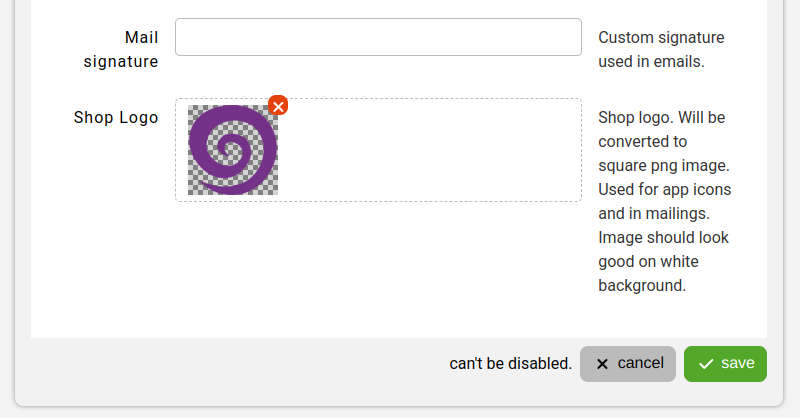
Upload your default shop logo.
You can use menu to go to System > Configuration. Then, in Core Module configuration, editing Shop Logo field.
You can use any file format extension, it will be automatically convert to square PNG file that will be used in mailings and as application icon.
For this change to take effect you need to rebuild your application. You can do this straight away or later when you are done editing configuration.
add products
Publish at least one product. You can use menu to go to Store > Products to do this.
If you selected "add example data" when creating your shop, example products will already be there. You can edit or remove them.
Products in admin panel are edited in a "grid", for more information on how to use grids please check:
For more information on editing products please check:
You can also use "frontools" to edit your products from your store front, for more information on how to do this please check:
create a cms page
This is optional. Publish at least one page. You can use menu to go to "CMS" -> "Pages" to do this.
create a cms page
This is optional. Publish at least one page. You can use menu to go to CMS > Pages to do this.
create a cms page
This is optional. Publish at least one page. You can use menu to go to CMS > Pages to do this.
edit menu
This is optional but recommended. At at least one element to your menus. You can use menu to go to CMS > Menus to do this.
customize theme
This is optional. You can use menu to go to System > Theme to do this.
You can upload custom logos to navbar menu for desktop and mobile version. You can also customize colors, fonts and other theme properties. You can also use this section to change theme for your shop.
For more information on how to customize your theme please see theme.
configure payment
Enable at least one module that starts with payment_ prefix. You can use menu to go to _System_ > Configuration to do this.
It is recommended to start with payment_banktransfer module as it is the easiest to set up.
Configuration of payment method depends on selected module so please refer to module documentation for details:
configure saas module
Configure "saas" module. This module contains your billing information so we can issue invoices for our fees later. You can use menu to go to System > Configuration to do this.
Please refer to saas module documentation for more details.
configure invoices
Configure "invoices" module. This module will generate invoices for all your sales. You might choose to send them automatically to customers with order emails.
This is optional. You might wish to handle invoicing on your own.
You can use menu to go to System > Configuration to do this.
Please refer to invoices module documentation for more details.
edit terms and conditions
Use editor to edit your terms and conditions page. Customers need to accept those terms before making a purchase.
Please refer to cms module documentation for more details.
place a test order
Go to your store front and place a test order. This is optional but recommended. You will see communication with customer and learn how to process orders.
Please refer to om module documentation for more details.
disable test mode
Disable test mode in core module config and rebuild application.
You can use menu to go to System > Configuration. Then, in Core Module configuration, editing Test Mode field.
go back to documentation home