Front Edit Tools
Besides an admin panel that is a primary tool when managing your store data swift.shop comes with a handy set of tools that integrate to your store front-end and allows you to perform testing and editing contents of your store directly on your shop page.
Store toolbox
When you are logged in to your admin panel, you should see following toolbox on your shop:
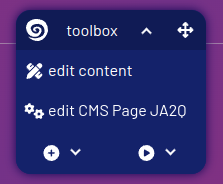
If you cant see the toolbox, try reloading the webpage.
This toolbox serves few purposes:
- When it is displayed, you can assume you are logged in as admin. You will see all content that is marked as "draft" that other users normally do not see.
- Allows creating and editing products and CMS pages
- Allows editing CMS pages content with "Content Editor"
working with "drafts"
All new products and pages, by default, have a "Draft" status. In admin panel grids you will see which items are "Drafts" in the status column. You can change this status in "actions" column using "publish" and "unpublish" actions.
This allows you to configure an item and preview how it will look in your shop before making it available to your visitors.
When you are logged in as admin, and you can see the "toolbox" on your shop, you should be able to see all "draft" items. On listings, they are displayed with a transparency to clearly mark them as drafts. On item pages you will see additional warning that this item is a draft, and only you can see it. Other visitors can not see "draft" items at all.
"toolbox" also gives you access to item actions (little play icon), using this you can publixh/unpublish an item while viewing it on your shop front-end.
entity editor
When you are seeing a product or CMS page you can use "edit Product XXX" or "edit CMS Page XXX" buttons in toolbox to change item properties directly from the front end and see changes instantly.
If you notice an issue while browsing your shop, for example wrong item price or a typo, you can use this feature to quickly fix it without switching to the admin panel.
content editor
When you go to a CMS page on your shop, in addition to "edit CMS Page XXX" button that you can use to edit page properties like title, url, seo keywords etc., You will also see "edit content" button that will switch you to "edit mode". In this mode you can visually edit contents of this page. Use displayed tools to compose your page using available components.
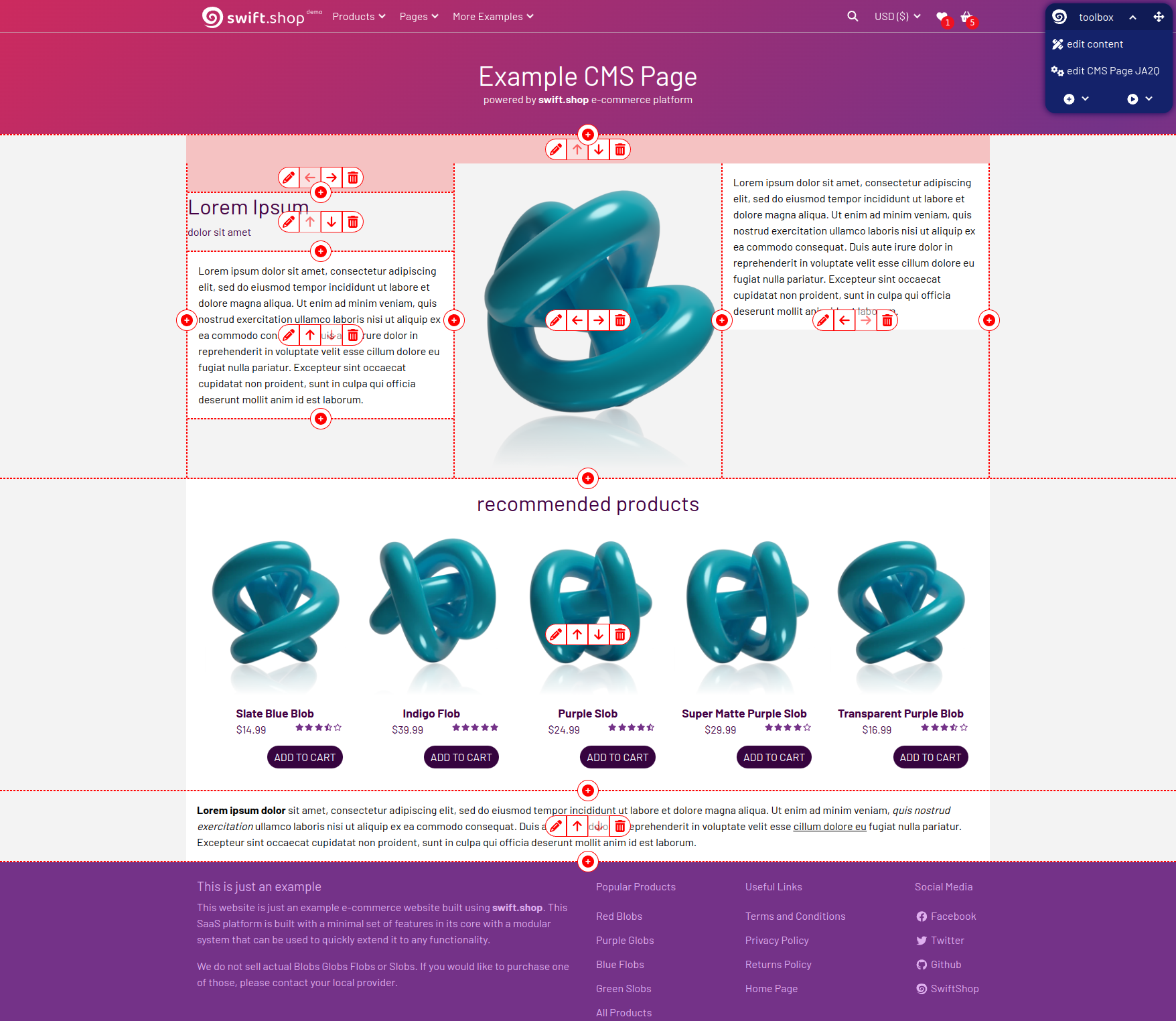
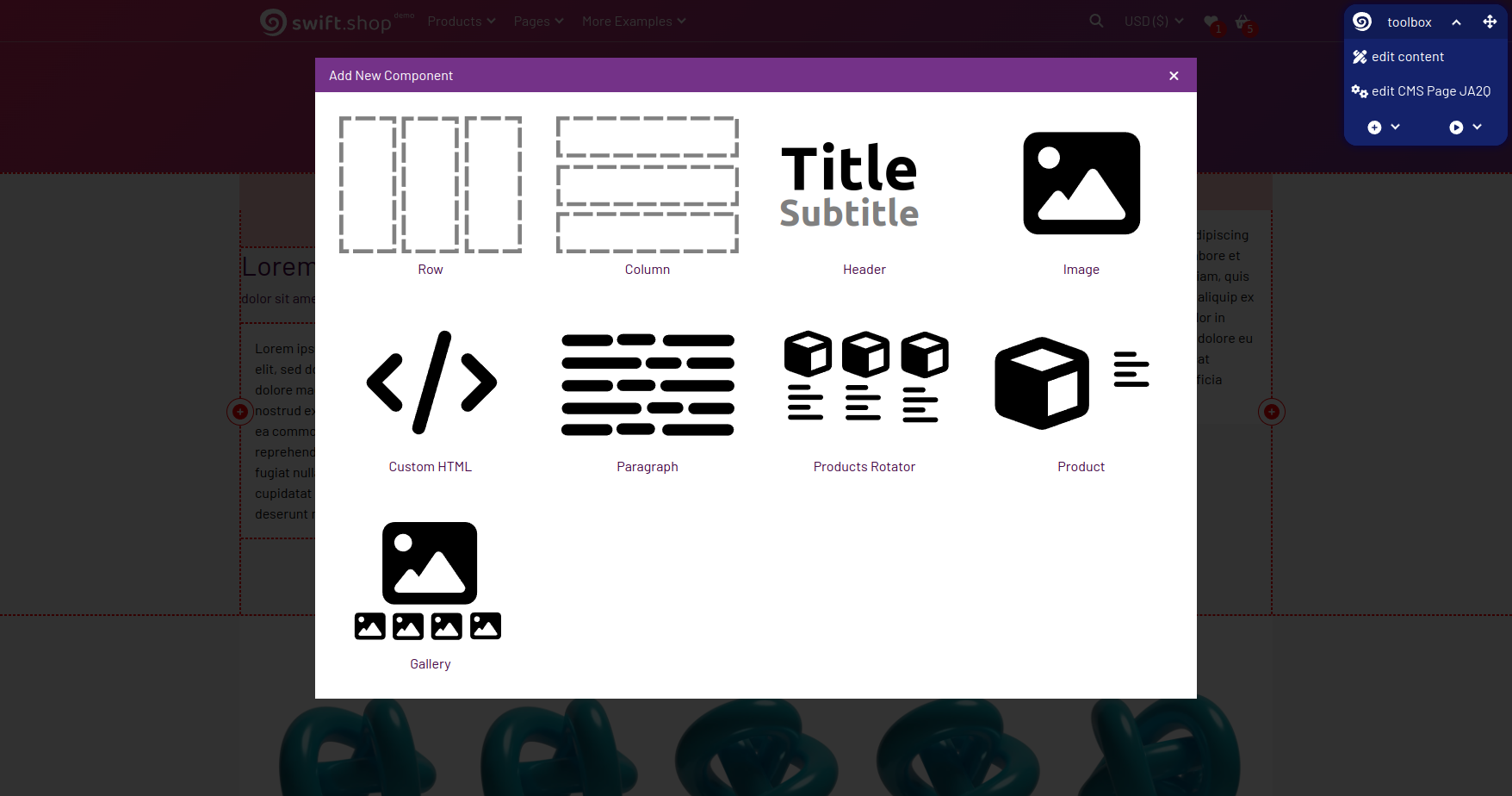
When adding new elements you can see different components depending on enabled modules. Besides of static elements you can add active elements like product preview that will contain "add to cart" button. You can use this to create articles and content with your products seamlessly presented.
go back to documentation home